Main Shapes
Main Shapes A geometric entity or a collection of such entities. Each entity is described by basic geometry such as a point, a line or an arc. Examples of shapes are: Route, Centerline, Waypoints, Fix Set, Dump Boxes, Progress Grid Model, Designs, etc. are the important (main) shapes for navigation and operation.
Under Main Shapes you will find the shapes that are updated by your operation
like: Progress Grid A type of DTM that is made manageable through sampling measured points into a regularly spaced raster, allowing fast and conditional access. Considered to be a secondary data set; since no original points are kept..
Model, Progress Fix Set A shape file that can contain fixes and/or targets. Targets are points (positions defined by an X and an Y co-ordinate) to be used in VOSS RT, for operators to perform certain actions on each target. For example, place a block, drop an anchor, install a vertical drain. In VOSS RT, at the moment of installation, automatic or manually a fix can be logged, that contains the actual co-ordinates, date & time and other parameters.,
Checkerboard, Structure, etc.
A geometric entity or a collection of such entities. Each entity is described by basic geometry such as a point, a line or an arc. Examples of shapes are: Route, Centerline, Waypoints, Fix Set, Dump Boxes, Progress Grid Model, Designs, etc. are the important (main) shapes for navigation and operation.
Under Main Shapes you will find the shapes that are updated by your operation
like: Progress Grid A type of DTM that is made manageable through sampling measured points into a regularly spaced raster, allowing fast and conditional access. Considered to be a secondary data set; since no original points are kept..
Model, Progress Fix Set A shape file that can contain fixes and/or targets. Targets are points (positions defined by an X and an Y co-ordinate) to be used in VOSS RT, for operators to perform certain actions on each target. For example, place a block, drop an anchor, install a vertical drain. In VOSS RT, at the moment of installation, automatic or manually a fix can be logged, that contains the actual co-ordinates, date & time and other parameters.,
Checkerboard, Structure, etc.
Designs are listed separately, see: Design.
Supporting Shapes support operation and navigation and can not be updated by your operation, see: Supporting Shapes.
To get to the Main Shapes window:
 MENU > Operation
Settings > Main Shapes, or: F1
MENU > Operation
Settings > Main Shapes, or: F1
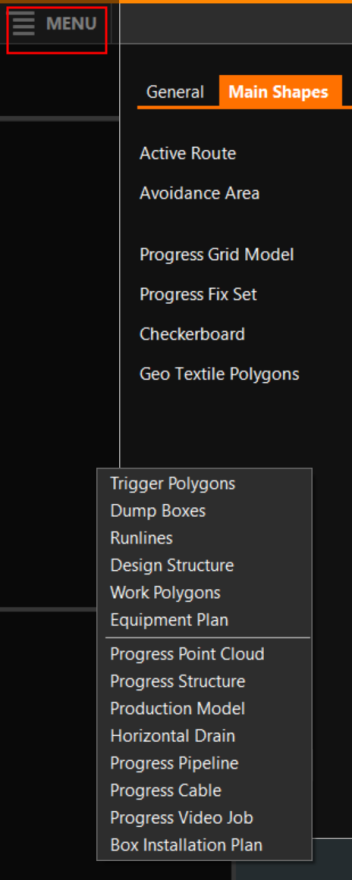
Depending on your Equipment In VOSS RT Equipment is the collective name for all marine and land machinery provided with positioning (and attitude devices).
type, you will find the following Main Shapes:
- Active Route
- Avoidance and Restricted Area(s)
- Box Installation Plan (excavator/CSD Cutter Suction Dredger/HSD)
- Checkerboard
- Design Structure
- Dump Boxes
- Equipment Plan
- Geo Textile Polygons
- Horizontal Drain
- Main Grid Model
- Production Model
- Progress Cable
- Progress Fix Set
- Progress Grid Model
- Progress Pipeline
- Progress Point Cloud
- Progress Structure
- Progress Video Job
- Runlines
- Sounding Grid
- Trigger Polygons
- Work Polygons
If a Main Shape
is not listed, use the  button to add the missing Main Shape
to the list.
button to add the missing Main Shape
to the list.
Behind the various Main Shapes you will find the following buttons:

Click [...] to select a Main Shape
Click [spanner] to adapt the way the Main Shape is shown
Click [create new] to create a new empty Main Shape
Click [update history] to inspect an overview of the Updates that have been performed on that Main Shape
Click [bin] to Remove a Main Shape and stop using it. (The Shape is not deleted).