Progress Fix Set
The Progress Fix Set A shape file that can contain fixes and/or targets. Targets are points (positions defined by an X and an Y co-ordinate) to be used in VOSS RT, for operators to perform certain actions on each target. For example, place a block, drop an anchor, install a vertical drain. In VOSS RT, at the moment of installation, automatic or manually a fix can be logged, that contains the actual co-ordinates, date & time and other parameters.
is a shape A geometric entity or a collection of such entities. Each entity is described by basic geometry such as a point, a line or an arc. Examples of shapes are: Route, Centerline, Waypoints, Fix Set, Dump Boxes, Progress Grid Model, Designs, etc. file
that contains the Targets where draining, compaction or block placing needs to take place. The file will be prepared in VOSS.NET and can be imported in VOSS RT.
A shape file that can contain fixes and/or targets. Targets are points (positions defined by an X and an Y co-ordinate) to be used in VOSS RT, for operators to perform certain actions on each target. For example, place a block, drop an anchor, install a vertical drain. In VOSS RT, at the moment of installation, automatic or manually a fix can be logged, that contains the actual co-ordinates, date & time and other parameters.
is a shape A geometric entity or a collection of such entities. Each entity is described by basic geometry such as a point, a line or an arc. Examples of shapes are: Route, Centerline, Waypoints, Fix Set, Dump Boxes, Progress Grid Model, Designs, etc. file
that contains the Targets where draining, compaction or block placing needs to take place. The file will be prepared in VOSS.NET and can be imported in VOSS RT.
Once activated, the Target locations can be seen in VOSS RT and can be used as targets to Navigate to.
When the operator generates a Fix, a marker with position, height, Fix number, date and time is stored in the Progress Fix Set.
Progress Fix Sets are Main Shapes and can be managed via: Main Shapes
 MENU > Operation
Settings > Main Shapes > Progress Fix Set or:
MENU > Operation
Settings > Main Shapes > Progress Fix Set or:
Keyboard: F1 >
Main Shapes > Progress Fix Set
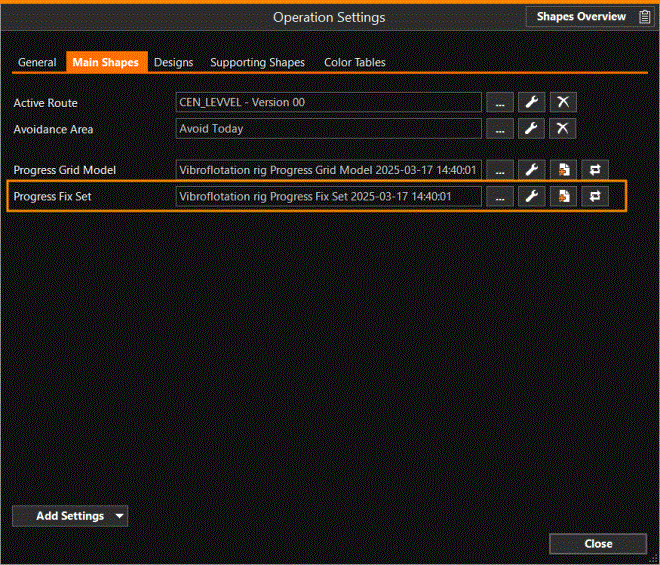
Settings
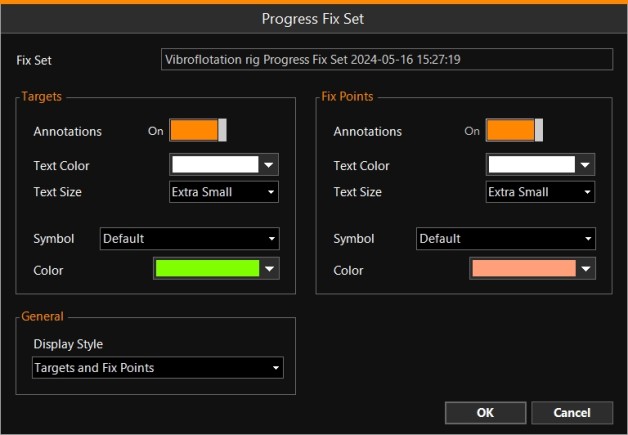
Click on the spanner icon  to open the 'Progress Fix Set' window:
|
Progress Fix Set |
|
|---|---|
|
Fix Set |
The file which will be filled with fix data. It is selected in the previous window and cannot be changed here. |
|
Targets |
|
|
Annotations |
Switch on the plotting of text that was entered when creating the targets. |
|
Text Color |
Select in which color to plot the annotations. |
|
Text Size |
Select in which size to present the annotations. |
|
Symbol |
From the drop down menu, select how to show a target. The default is a double ring. |
|
Color |
Select in which color to present the targets. |
|
General |
|
|
Display Style |
From the drop down menu, select whether you want to show the Targets as delivered by the office, the Fix Points as recorded by your equipment, or a combination of the two. |
|
Fix Points |
|
|
Annotations |
Switch on the plotting of text when recording fix points. |
|
Text Color |
Select in which color to plot the annotations. |
|
Text Size |
Select in which size to present the annotations. |
|
Symbol |
From the drop down menu, select how to show a fix point. The default is a dot with a cross through it. |
|
Color |
Select in which color to present the fix points. |
Fixes are normally created manually (or by using a foot pedal, if installed). Only in exceptional cases is fix recording automated.
For more information about Fixes see: Fix Event.