Checkerboard
A checkerboard is a rectangular area divided into cells that are all of identical size.
Checkerboards are used to keep track of the filling process in the area covered by the checkerboard.
They are typically used by excavators, backhoes, wire cranes and shovels.
Normally, a layer of a certain thickness needs to be placed in the area covered by the checkerboard. By using the 'Dump' instruction, VOSS RT will update the cell where the head or tool of your equipment is located at that moment. The Dump instruction can be given by pressing function key F8 (or by a foot panel, if installed).
On this page:
-
Active Checkerboard - View which checkerboard is being used now.
-
Select Checkerboard - Select a checkerboard to use.
-
Checkerboard Settings - Change the way the checkerboard is shown.
-
New Checkerboard - Create a checkerboard on the spot.
Active Checkerboard
The active checkerboard is the one in use. It can be provided by the Surveyor or it can be created manually at Main Shapes A geometric entity or a collection of such entities. Each entity is described by basic geometry such as a point, a line or an arc. Examples of shapes are: Route, Centerline, Waypoints, Fix Set, Dump Boxes, Progress Grid Model, Designs, etc..
 MENU > Operation
Settings > Main Shapes or:
MENU > Operation
Settings > Main Shapes or:
Keyboard: F1 >
Main Shapes
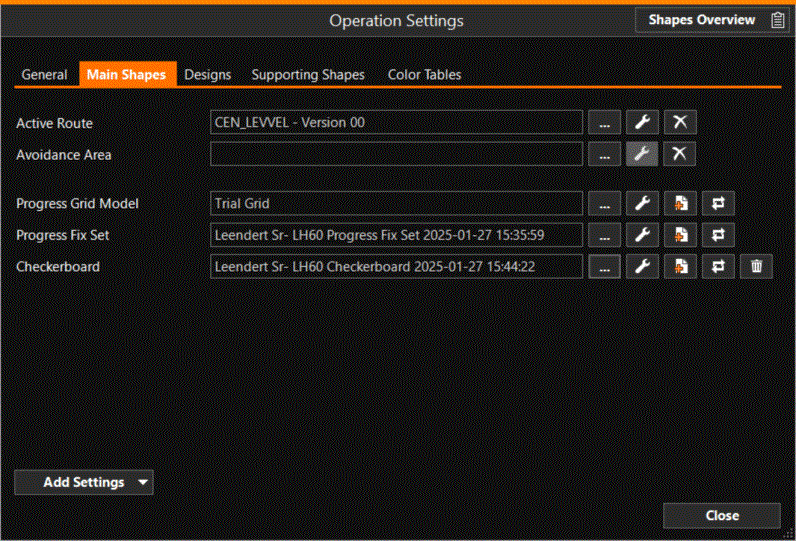
To be able to see the live updating of layers, make sure that a Progress Grid Model is also activated and that a Design Model/Fixed Layer is available.
Select Checkerboard

Click this button to select a Checkerboard from those available in
the SDM Survey Data Manager - the database that manages and carries the total set of your data..
Checkerboard Settings

Click here to change the way the checkerboard is shown in the Top View:
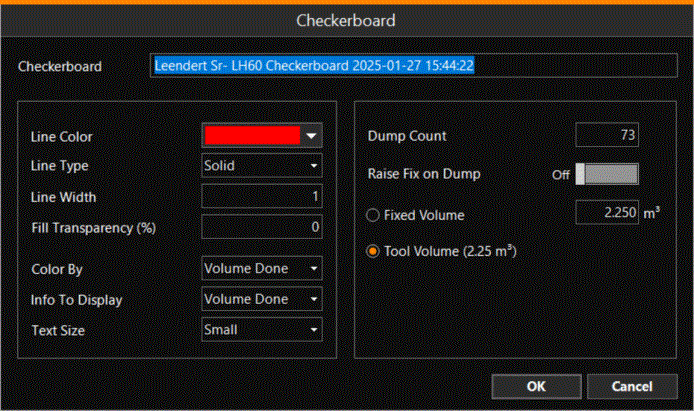
Depending on what has been selected at Color By, the Info To Display will show different options for displaying inside the dump cells:
-
Nothing
-
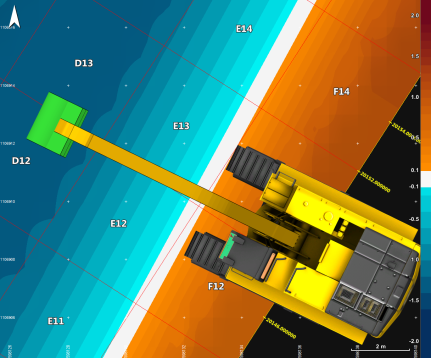
Annotation: the cell ID number will be shown
-
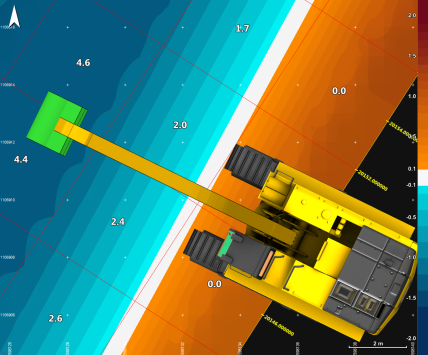
Dumps To Do: the number of dumps still to be done is shown in each cell. The volume of the tool must be set, see: Tool Volume, below.
-
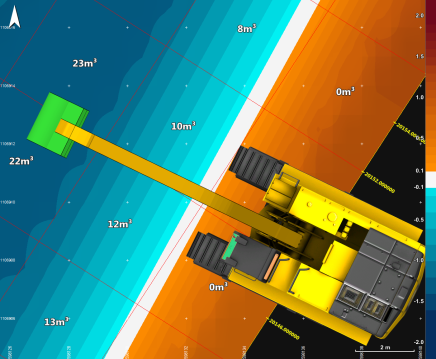
Volume To Do: in each cell the volume still to be filled is shown. The volume of the tool must be set, see: Tool Volume, below.
Dump Count - After each dump instruction, the dump counter will increase by 1. Here it can be reset to 0.
Raise Fix on Dump - If switched on, after each dump a fix is generated in the Top View and stored in the fix file.
Fixed Volume - If you don't want to use the Tool Volume below, enter a volume as necessary here. It will be used to update the checkerboard after each Dump.
Tool Volume - The volume of your tool as entered in the Equipment Editor Part of the VOSS.net software package, in which all parameters, dimensions, layout, arms, heads and interfacing with other equipment can be defined, normally by the surveyor.-Layout-Arms window. It will be used to update the
checkerboard after each Dump.
New Checkerboard

Click this button to create a new Checkerboard and to give it a name:
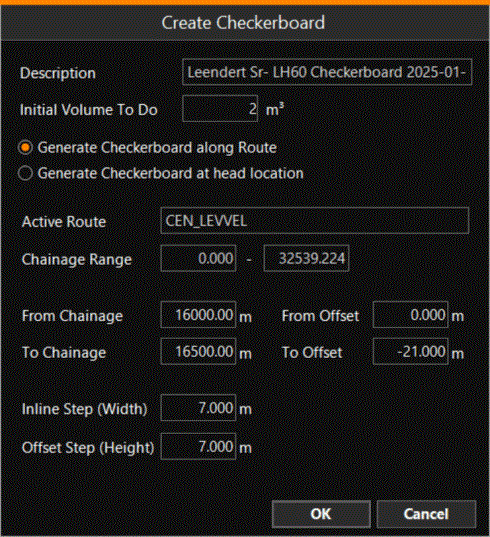
The location of a checkerboards is always based on Chainage and Offset
of the Active Route Routes are aiding lines used in the construction of infrastructure. They usually correspond to the center or a standard offset to the center of that structure. A Centerline can be a Route. A Pipe or Pipeline can also be a Route..
The Active Route can be changed in Main Shapes, see: Select or change Active Route
The area of the checkerboard is defined by From and To Chainage and From and To Offset.
The cell size along chainage and offset should also be specified: use the Inline Step and Offset Step for this.
Show Checkerboard Update History

Click this button to see the history of Checkerboard updates.
Update Checkerboard
Update Checkerboard can be found under Quick Access:
MENU > Quick Access > Update Checkerboard
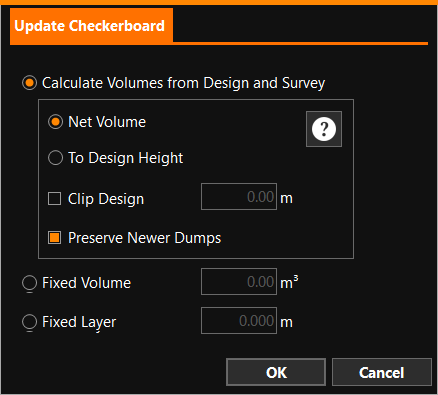
The Checkerboard in use, as specified under Main Shapes, can be updated in various ways:
Update Checkerboard
Calculate Volumes from Design and Survey - If a Design and a Survey Grid A type of DTM that is made manageable through sampling measured points into a regularly spaced raster, allowing fast and conditional access. Considered to be a secondary data set; since no original points are kept.. model are available, the Checkerboard will
be updated per cell, comparing these models. Click on the Question Mark button to see what the three sub-options will calculate.
Preserve Newer Dumps - When surveying a part of the checkerboard, you don't want to update the whole checkerboard. When this option is activated, the parts where the dumps are newer than the survey are not updated. If not activated, the complete volume for the checker board is updated.
Fixed Volume - All cells will be filled with the volume specified here. (This is not the same as the Fixed Volume at the Checkerboard Settings, above, which states the volume per dump.)
Fixed Layer - All cells will be filled with a volume calculated from the layer thickness specified here.
Restore
A filled checkerboard is essential for operation.
If, for any reason, the update of the checkerboard goes wrong, use this option to undo the update.
Example
An excavator needs to install a layer of 0.5 [m] thickness with a certain material. According to the size and volume of the used bucket, experience and/or tests, a checkerboard cell size of 2 x 2 [m.] is chosen. The volume of a normal full bucket is 2 [m3]. To achieve 0.5 [m.] layer thickness in every cell = 2 x 2 x 0.5 = 2 [m3] is needed, which means one bucket in every cell.
For every cell the volume still to fill is registered. After each Dump in a cell, the volume still to fill in that cell is updated with the volume of the tool.
Below, an excavator with the numerical options the program offers:
-
Left with Annotation only.
-
The middle one displays the theoretical volumes which fit in the box boundaries.
-
At the right the "to do" amount defined as number of dumps, based on the equipment (bucket) capacity.