Progress Video Job
Jobs can be created and selected for storing Camera Recordings and Screen Recordings.
The main difference between the Camera recording and the Screen recording is that the camera recording only records the (raw), not scaled, full quality video stream in a file, while the screen recording records the full RT screen into a video file, including the Numerics and other views.
 MENU > Operation Settings > Main Shapes
 A geometric entity or a collection of such entities. Each entity is described by basic geometry such as a point, a line or an arc. Examples of shapes are: Route, Centerline, Waypoints, Fix Set, Dump Boxes, Progress Grid Model, Designs, etc. > Add Settings > Progress Video Job:
-
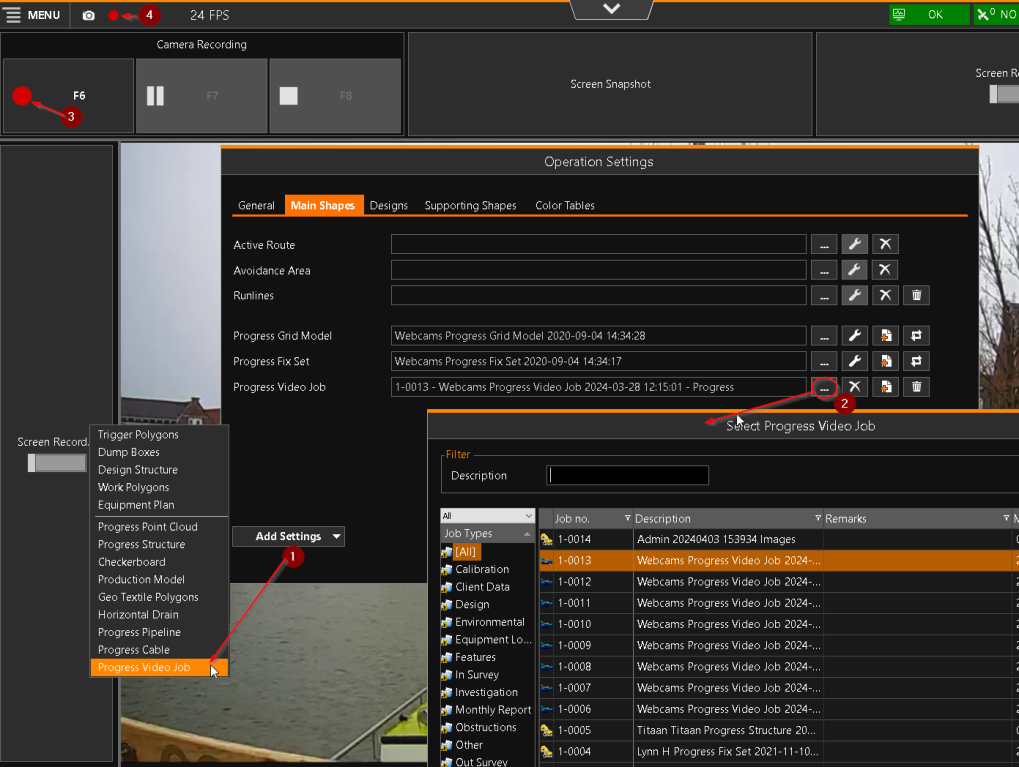
In the Main Shapes page, use Add Settings to add a Video Job.
-
Use the [new] button to create a new storage file, or use the browse button [...] to select an existing file.
The recording will be stored in the Progress Video Job. If no Job is selected, a new one will be created. -
While the ROV
Remotely Operated Vehicle is in use, the video camera can be switched on using the F6 button. -
The recording button at the top of the screen (red dot) is meant for recording the operations screen, so you can review what your settings were and how the job was progressing in VOSS RT.
Video data recorded in a Job in VOSS RT is available in VOSS.NET, under Control Center - Jobs.
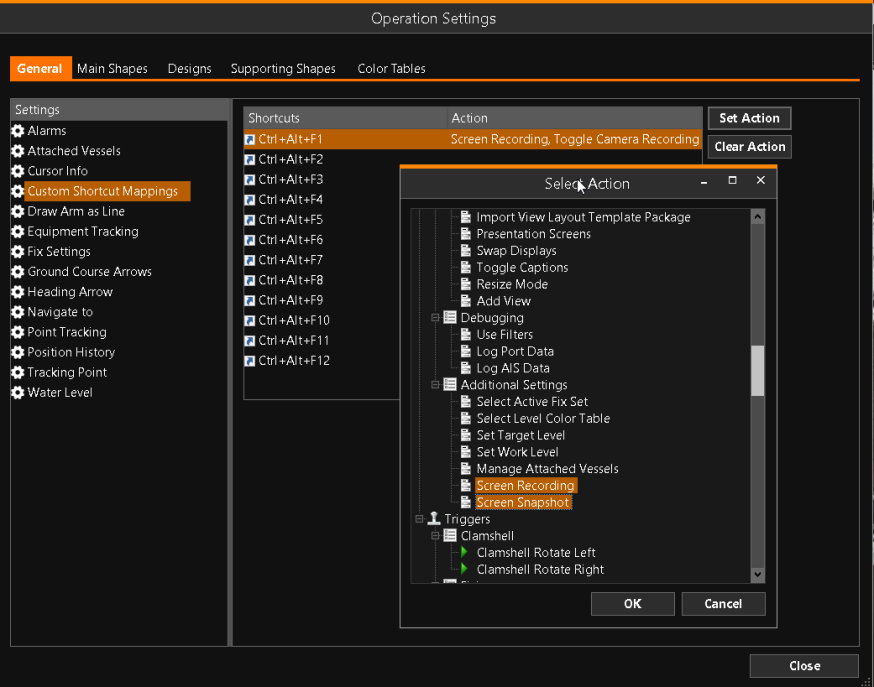
Custom keyboard shortcuts allow multiple actions to perform and execute triggers:
Settings for the Screen recording are set here: Capture Settings