Supporting Shapes
In VOSS RT shapes are divided into:
The Supporting Shapes support navigation and operation. Supporting Shapes can not be changed in VOSS RT, only in VOSS.NET.
Supporting Shapes are all other shapes, that are not Main Shapes and not Designs.
They can be displayed in your Top View and depending on the type of shape, also in section views.
All shapes are stored in the SDM Survey Data Manager - the database that manages and carries the total set of your data.. They have been stored in the SDM via
Transfer Packages by the surveyor or by operators.
Survey Data Manager - the database that manages and carries the total set of your data.. They have been stored in the SDM via
Transfer Packages by the surveyor or by operators.
On this page:
To see the list of Supporting Shapes, you can use:
 MENU > Operation
Settings > Supporting Shapes or:
MENU > Operation
Settings > Supporting Shapes or:
Keyboard: F1 >
Supporting Shapes
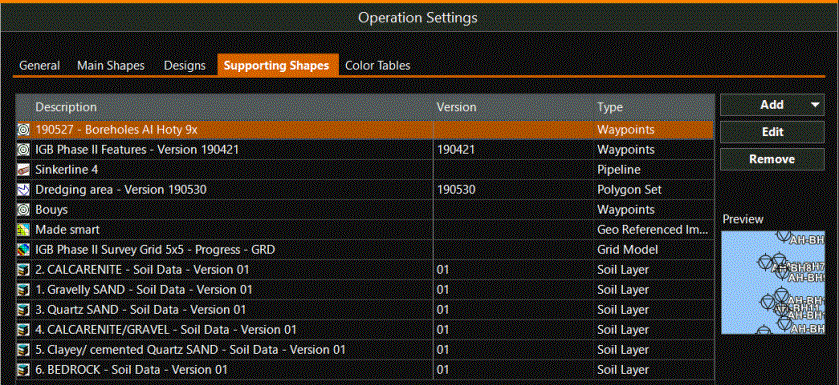
The Shapes in the list above are available to display in the Top View and (some of them) in Section and 3D views.
If a Shape is in the list it means it is loaded into VOSS RT, but it can be switched on or off.
See: Switch Shapes on/off (visible/unvisible)
Add Supporting Shapes from SDM
Imagine a new version of the Dredging area Polygon Plane figures that are bounded by a closed path. was sent to you via
a Transfer Package. That Dredging area Polygon will be stored in the SDM
and is not yet available for you to use and display.
In this case use Add to see all Shapes in the SDM. After clicking Add
you will first be asked to choose between Shape(s) or Surface Model A special type of shape. It is a digital representation of a 3D surface. The used types of Surface models are: Grid Model / Point Cloud / TIN Model / Soil Layer.(s):
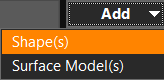
A Polygon is not a Surface Model so choose Shape(s).
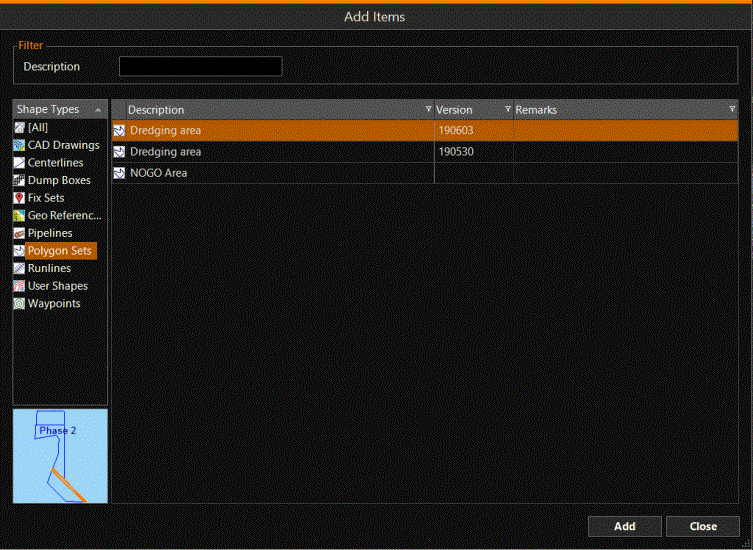
A list of all Shapes (except Surface Models) in the Geodetic Region
of your Project An area of work that is defined and described by its tasks and/or its data sets. A project is an integrated part of any one (1) Geodetical Region. is shown. You can sort by Description, Version or Remarks.
Typing in a word in the Description box will shorten the list. If you know the Shape Type you are looking for, click on that type in the left hand column and only the Shapes of that type will be shown.
Click on the Shape you need and click Add. If a Shape is added to the list, it is straight away switched on in the various views.
See: Switch Shapes on/off (visible/unvisible)
Remove a Supporting Shape from VOSS RT
Imagine a new version of the Dredging area Polygon was sent to you via a Transfer Package and you have Added it to your list of Supporting Shapes.
See: Add Supporting Shapes from SDM in the paragraph above.
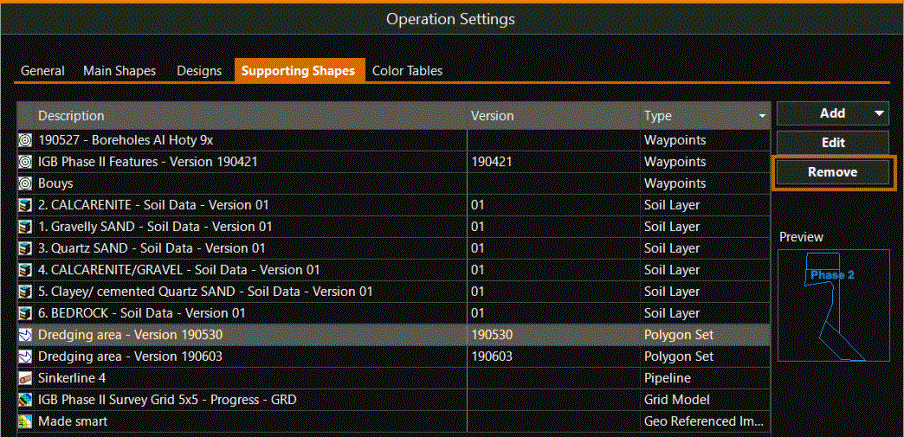
It is important to now remove the previous version of this Shape from your list.
Click on the item and then click Remove:
Edit a Supporting Shape
Select a Shape and click on the Edit button to adjust its settings:
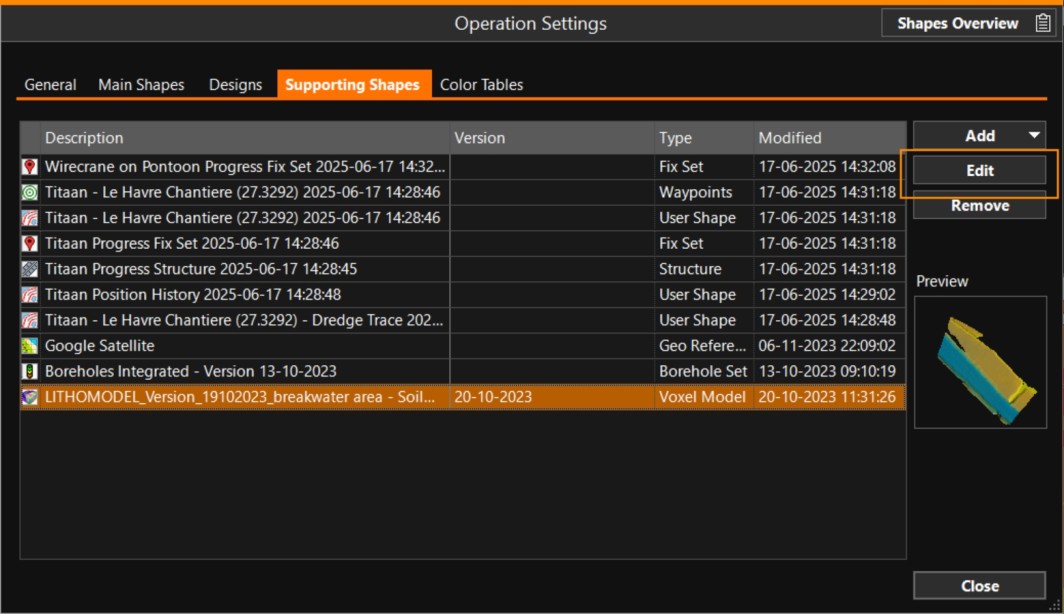
This changes how a Shape is shown in your views. The most common is changing its color. Line width, line type, displaying annotations (texts) or not, are also settings you can change.
Depending on the type of Shape selected, there will be different items that can be changed.
The actual editing of the Supporting Shapes can not be done in VOSS RT, only in VOSS.NET.