Export Package
Various types of information can be exported from VOSS RT:
 MENU > Export Package
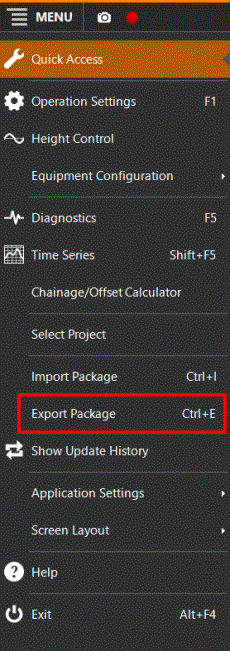
Depending on which type of data is available, the types of Export Packages will vary:
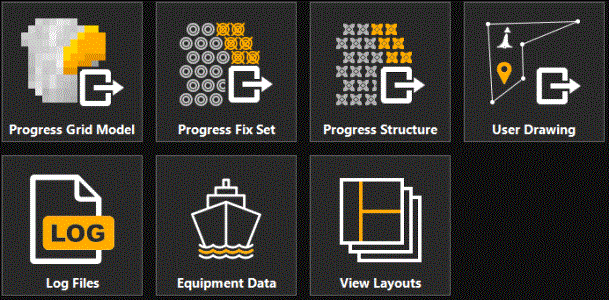

Progress Grid Model
This option is used to export information from the Progress Grid Model A type of DTM that is made manageable through sampling measured points into a regularly spaced raster, allowing fast and conditional access. Considered to be a secondary data set; since no original points are kept.. from your VOSS RT SDM Survey Data Manager - the database that manages and carries the total set of your data., for others to inspect the model updates by your operations.
(Exported will be the Progress Grid A type of DTM that is made manageable through sampling measured points into a regularly spaced raster, allowing fast and conditional access. Considered to be a secondary data set; since no original points are kept.. Model as selected at Main Shapes).
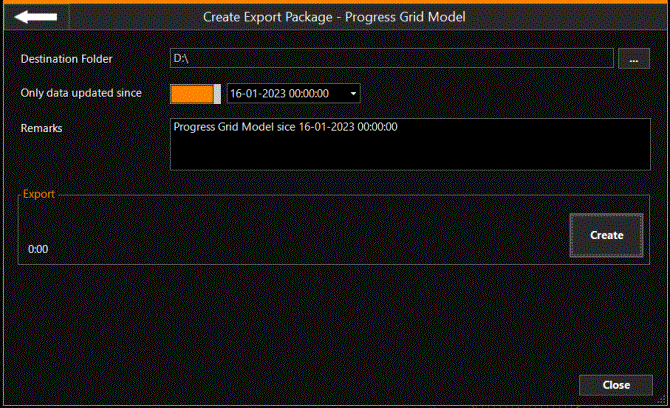
The export file will be placed at the location provided at: Destination Folder.
Normally only changes since a certain date (and time) will be required, also to limit the file size. When the 'switch' is orange = on, like in the picture: only data as from the chosen date and time will be exported.
A remark will help the office to identify the information.
Click Create to start the Export.
Progress Fix Set
This option is used to export information from the Progress Fix Set from your VOSS RT SDM, for others to inspect the Fix Set created by your operations.(Exported will be the Progress Fix Set as selected at Main Shapes).
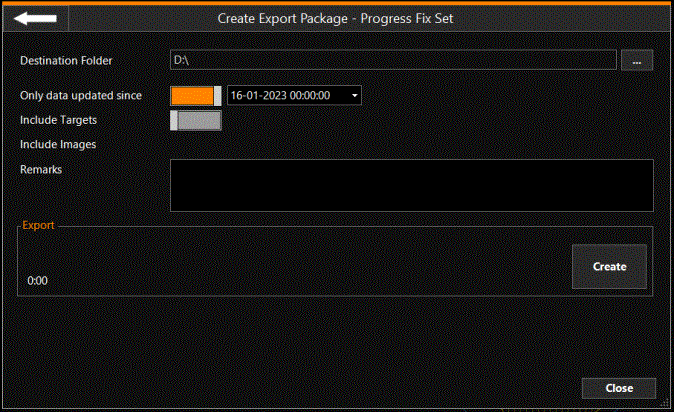
The export file will be placed at the location provided at: Destination Folder.
Normally only changes since a certain date (and time) will be required, also to limit the file size. When the 'switch' is orange = on, like in the picture above: only data as from the chosen date and time will be exported.
Targets can be included. The receiver/Project An area of work that is defined and described by its tasks and/or its data sets. A project is an integrated part of any one (1) Geodetical Region. Team should indicate if they should be included. If the 'switch' is grey, as in the picture above, it is off and Targets will not be included.
A Remark will help the receiver to identify the information you are sending.
Click Create to start the Export.
Progress Structure
This option is used to export information from the Progress Structure from your VOSS RT SDM, for others to inspect the Progress Structure created by your operations.
(Exported will be the Progress Structure Set as selected at Main Shapes).
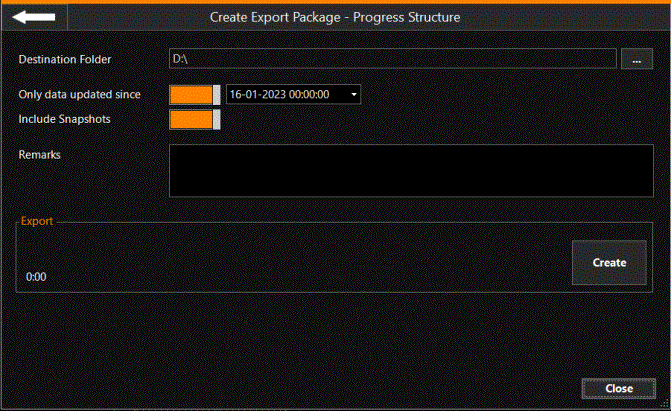
The export file will be placed at the location provided at: Destination Folder.
Normally only changes since a certain date (and time) will be required, also to limit the file size. When the 'switch' is orange = on, like in the picture above: only data as from the chosen date and time will be exported.
Include Snapshotscan be included. The receiver/Project Team should indicate if they should be included. If the 'switch' is orange like in the picture, it is on and Snapshots will be included.
A Remark will help the receiver to identify the information you are sending.
Click Create to start the Export.
User Drawing
Information created by operators in the Drawing Mode can be exported in an Export Package to a receiver, for example the Project Team.
Examples are:
- a new buoy location
- a polygon indicating a hard area
All content that was created in the Drawing will be exported.
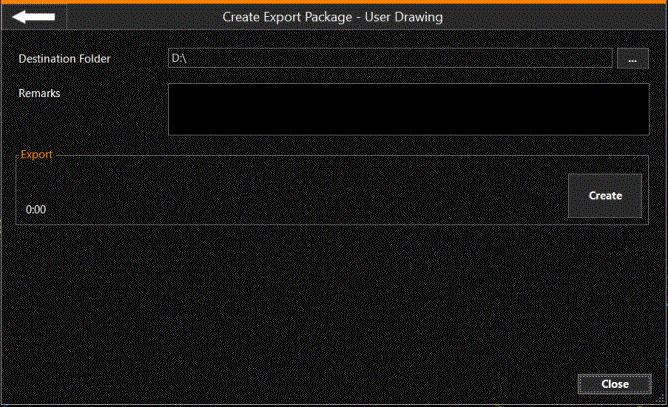
The export file will be placed at the location provided at: Destination Folder.
A Remark will help the receiver to identify the information you are sending.
Click Create to start the Export.
Log Files
All log file types can be exported from VOSS RT.
Log files can be either exported into one Transfer Package or as Separate files.
Indicate the Destination Folder.
Click 'Add' to select the Log files to export.
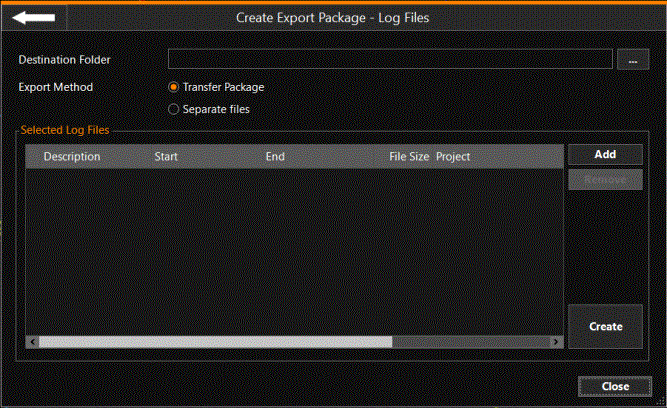
The export file will be placed at the location provided at: Destination Folder.
Click Create to start the Export.
Equipment Data
This option is designed to create, for example, a copy of the Equipment on your office PC, or to use it as a starting point to create a new piece of Equipment.
Optionally, View Layouts and/or Project Operation Settings and/or Log files can be added to the Equipment Export.
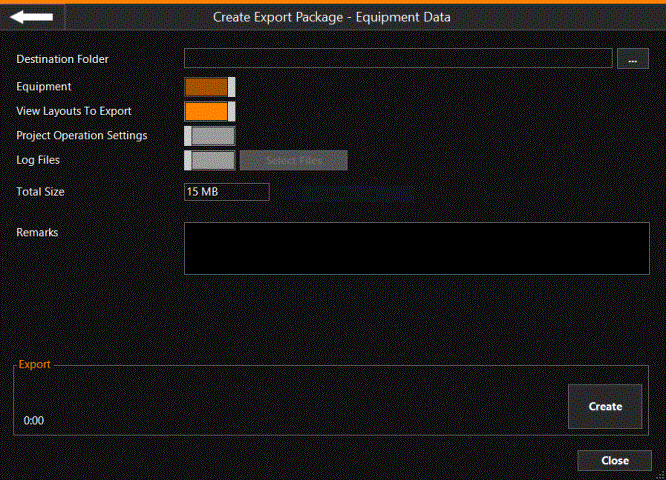
The export file will be placed at the location provided at: Destination Folder.
The Equipment will always be part of this export.
Optionally the View Layouts can be included.
Optionally Project Operation Settings can be included.
Optionally Log files can be included.
A Remark will help the receiver to identify the information you are sending.
Click Create to start the Export.
View Layouts
Export your View Layouts, so they can be used elsewhere.
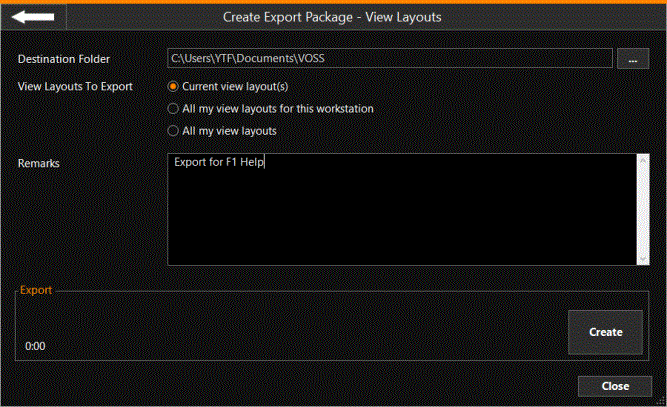
The export file will be placed at the location provided at: Destination Folder.
A Remark will help the receiver to identify the information you are sending.
Click Create to start the Export.
Progress Polygons
These polygons were created while laying geo textile, or they can be polygons from another activity, such as mowing reed beds on a river bank, where a dummy geo textile roll was used to record the mowed areas.
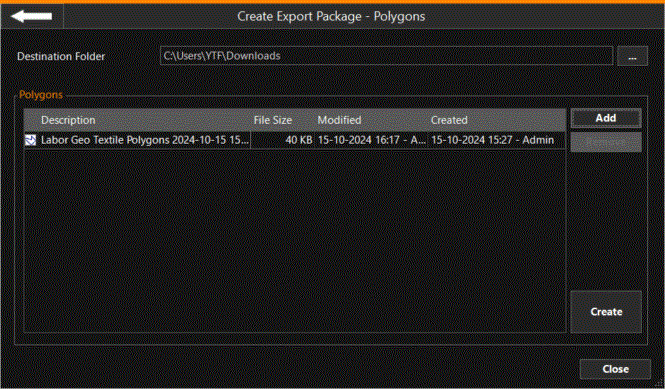
The export file will be placed at the location provided at: Destination Folder.
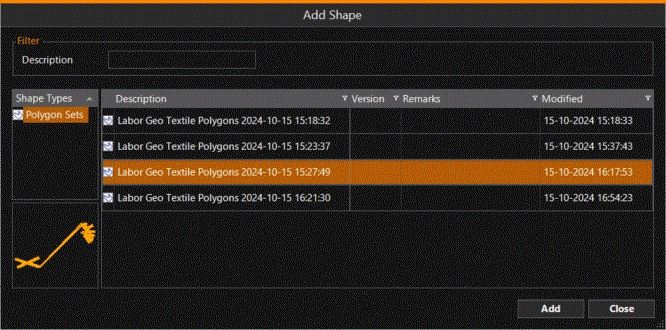
Use Add to select which file to export.
Click Create to start the Export.
Progress Checkerboard
At the end of the day, you can send your completed boxes to 'the office'.
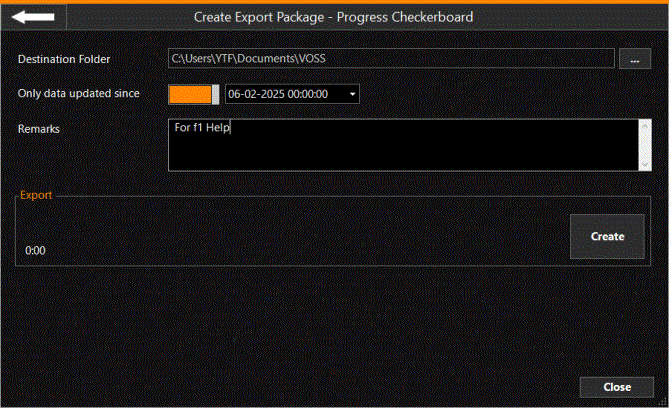
The export file will be placed at the location provided at: Destination Folder.
A Remark will help the receiver to identify the information you are sending.
Click Create to start the Export.
Progress Pipes
At the end of the project the details of the placed pipe can be exported.
When using the Horizontal Chain Trencher, the actual pipe/cable positions will be exported.
When working offshore with a Cable Lay Vessel, the progress consists of a line through all the Touch Down Points.
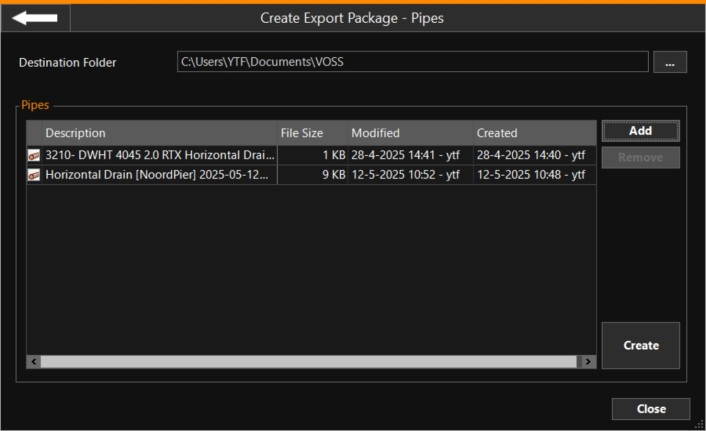
The export file will be placed at the location provided at: Destination Folder.
Use Add to select which file(s) to export.
Click Create to start the Export.