Simulation
VOSS RT has three Operation Modes:
-
Normal - This is the normal or Real Time mode where all incoming devices are used and applied.
-
Replay - In this mode log files from the passed can be replayed see: Replay.
-
Simulation - See below.
On this page:
On vessels with various VOSS RT Workstations, only the Normal Operation Mode is available. The reason is that Replay and Simulation modes can produce outputs that could interfere with VOSS RT in Normal mode on other Workstations used for navigation or operation. On these vessels, you can always inspect areas in the project by left mouse clicks and zoom in / zoom outor by unticking the follow vessel option.
Simulation is a good option to check how the information prepared by the surveyor looks in VOSS RT, or to see how a vessel or machine fits in a certain work area.
You will have practically all functionality as if you were in Normal
(= Real Time) mode. Depending on your equipment type, you can move arms,
change the water level, change your speed, heading, etc. and even
produce certain outputs from a VODAS Van Oord Dredging Automation System - this system is also used to control the output for rockdump vessels (VODAS output control). dredge computer.
Start Simulation
To start the Simulation mode:
 MENU > Application
Settings > Operation Mode > Simulation
MENU > Application
Settings > Operation Mode > Simulation
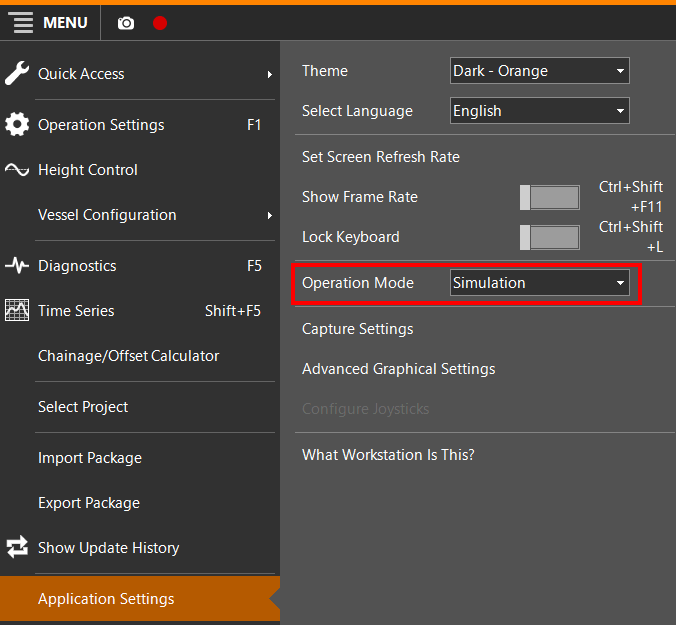
The Simulation window will open. Depending on your equipment type, it will have different options, but the Position and Heading tabs will always be available.
Simulation Position tab
At the top of the screen, this button on the Caption Bar,  will also open the Simulation dialog:
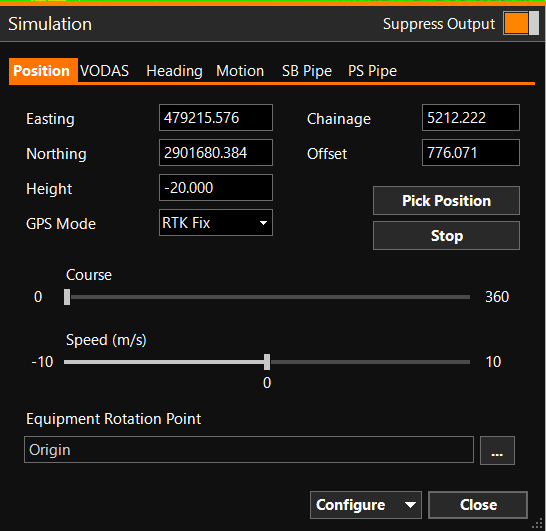
Suppress Output - If you don't want the simulation to be recorded in the logfiles, leave Suppress on.
There are various ways to give a start position to your equipment; Easting/Northing, Chainage/Offset or by clicking in the Top View using the Pick Position button.
Stop - This button will stop the movement of the equipment.
Course - Move the slide bar to change the ground course, the heading can be adjusted separately in the Heading tab.
Speed - Move the sliding bar to change the speed (forward or backward).
Simulation Heading tab
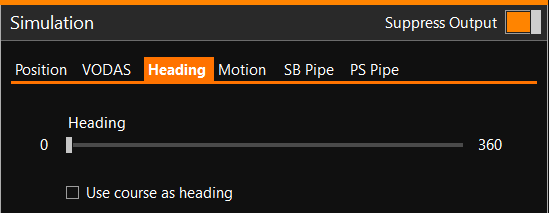
Adapt the heading by moving the slide bar.
If you tick 'Use course as heading', heading and ground course will be the same and they can be changed in the Position tab.