Set Vessel Target
The outline of your vessel can be saved in the Top View, to mark that location to come back to, for example.
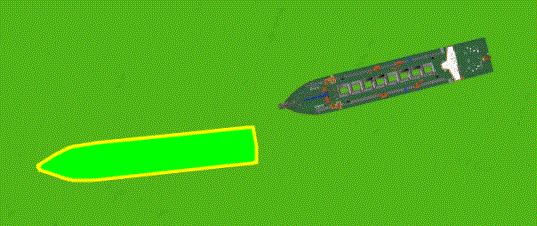
If 'Set Vessel Target' is used, an outline will be made of the current position and heading.
Set and Clear Vessel Target
 Right mouse click
Top View > Set Vessel Target
Right mouse click
Top View > Set Vessel Target
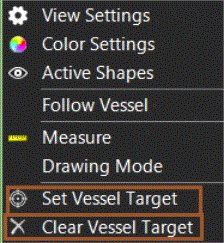
Enter the location for the target:
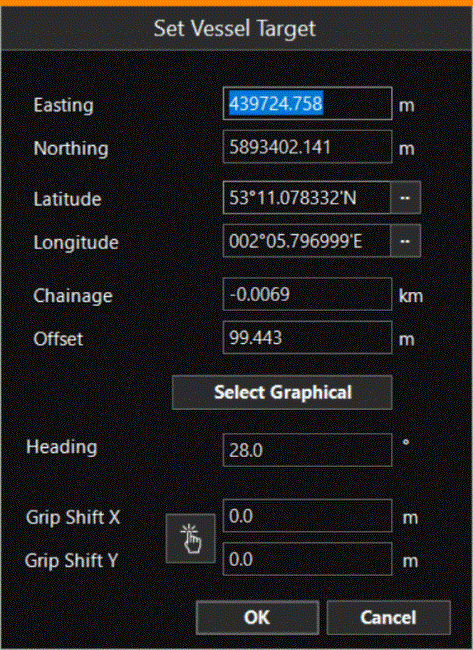
Select Graphical - Place the target shape A geometric entity or a collection of such entities. Each entity is described by basic geometry such as a point, a line or an arc. Examples of shapes are: Route, Centerline, Waypoints, Fix Set, Dump Boxes, Progress Grid Model, Designs, etc. in a location in the Top View.
Heading - Changing the heading of the target can also be done using the arrow keys. Select the heading text box and press (or hold) the up/down arrow keys to change the heading of the target.
Grip A part of a Shape allowing it to be moved, used or altered. Within VOSS.NET grips are centered around the knickpoints of polyline segments. The prefere grip size can be set in Preference of the submodule. Shift - The grip point (point that is used for placing the target and around which the target rotates) can also be selected graphically. After clicking the pick point button, you can click anywhere in the screen to place the grip point (red symbol).
The Outline will remain in the Top View until 'Clear Vessel Target' is selected.
Vessel Target Settings
The way the Vessel Target is presented can be adjusted via 'Vessel Target Settings':
MENU > Operation
Settings > General > Vessel Target Settings or:
Keyboard: F1 >
General > Vessel Target Settings
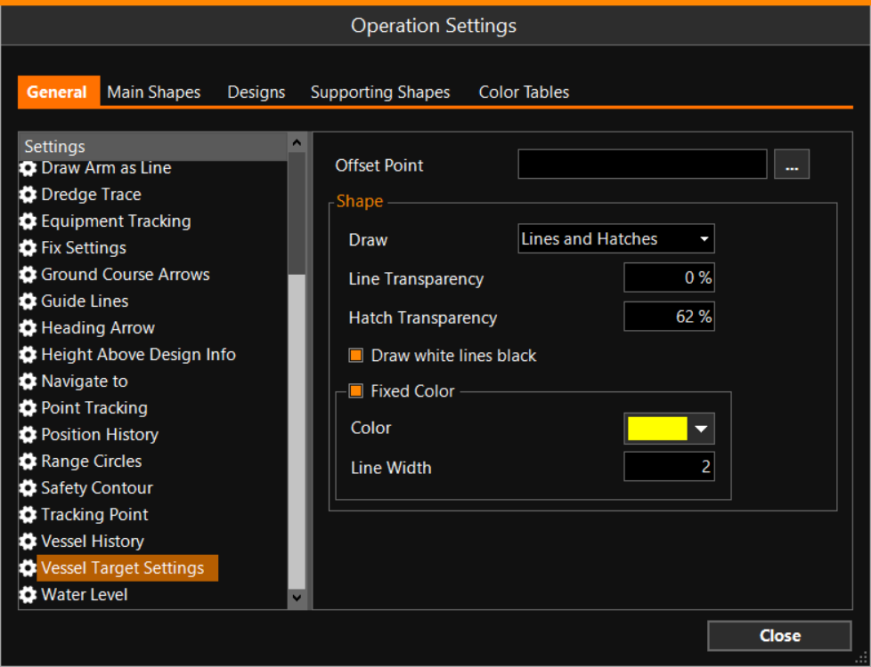
These settings are also used for the Select Vessel Target shapes as available from the Equipment Plan.