Show Info at Cursor
Show Info at Cursor is the option to show information in the Top View as available at the location of your mouse, like position and levels:
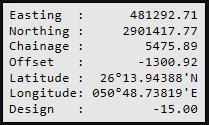

This information can also be shown in the Numerics Display. That way, you can switch off the showing of info at the cursor, which might block the view, and you can have the info available in the Numerics display instead.
Show Info at Cursor
To activate showing the information, follow these steps:
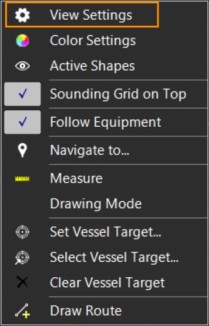
 Right mouse click in
Top View > View Settings > Show Info at Cursor
Right mouse click in
Top View > View Settings > Show Info at Cursor
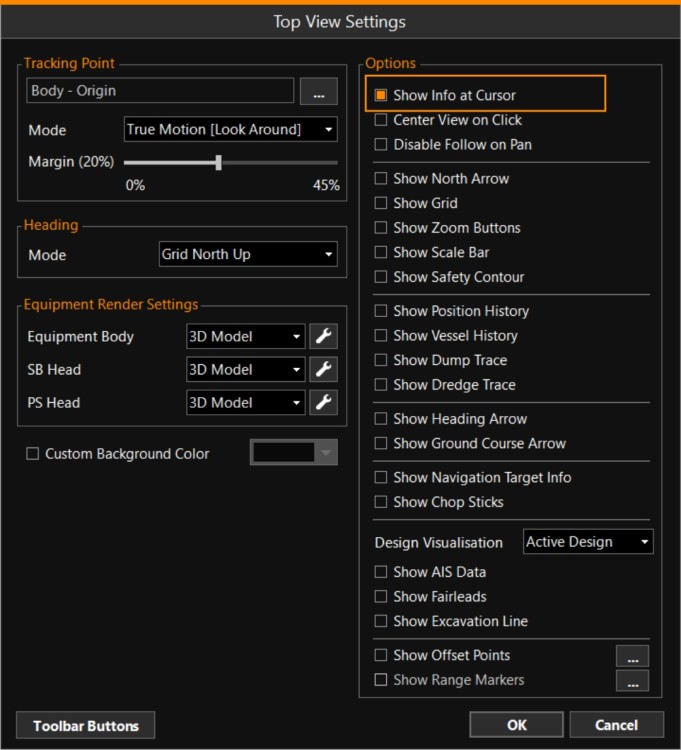
In this window you can switch on/off the showing of info at the cursor.
Cursor Info Settings
To select the items that are to be shown in Cursor Info, go to:
MENU > Operation
Settings > General > Cursor Info or:
Keyboard: F1 >
General > Cursor Info
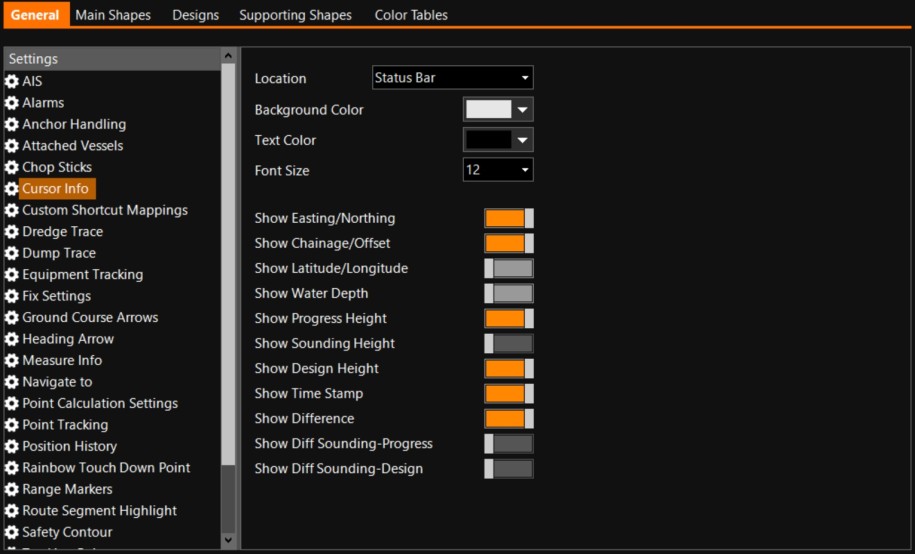
Location - Show the information At Cursor, or in the Status Bar at the bottom of the viewing area.
Cursor Info in Numerics display
Switch on the displaying of Cursor Info within the Numerics display:
Right-click in the Numerics display > Edit Items > scroll down in left hand column
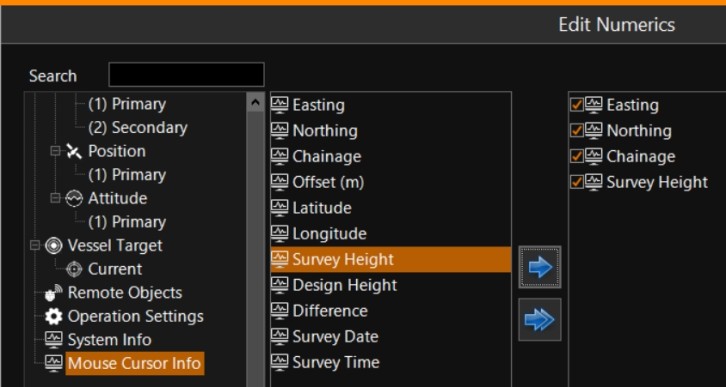
Select which items you would like to see from the cursor and click the blue arrow to move them to the right hand column.
Click OK to save the selection.