Dredge Traces
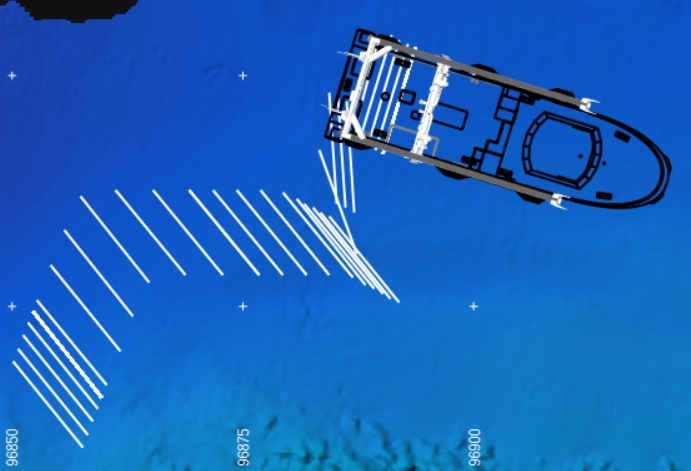
Dredge Traces are markings on your Top View to show where dredging has taken place.
- Show Dredge Traces
- Dredge Trace Settings
- Dockable menu button for toggling Dredge Trace
- Delete Dredge Traces
- Force Dredging
Show Dredge Traces
White lines will indicate where dredging has taken place.
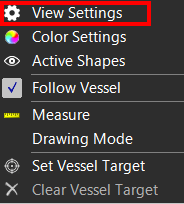
 Right mouse click
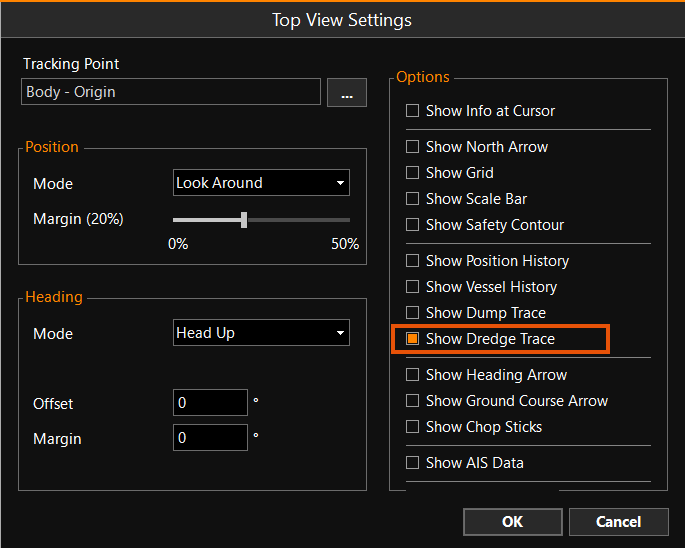
Top View > View Settings > Show Dredge Trace
Right mouse click
Top View > View Settings > Show Dredge Trace
Dredge Trace Settings
MENU > Operation
Settings > General > Dredge Trace or:
Keyboard: F1 >
General > Dredge Trace
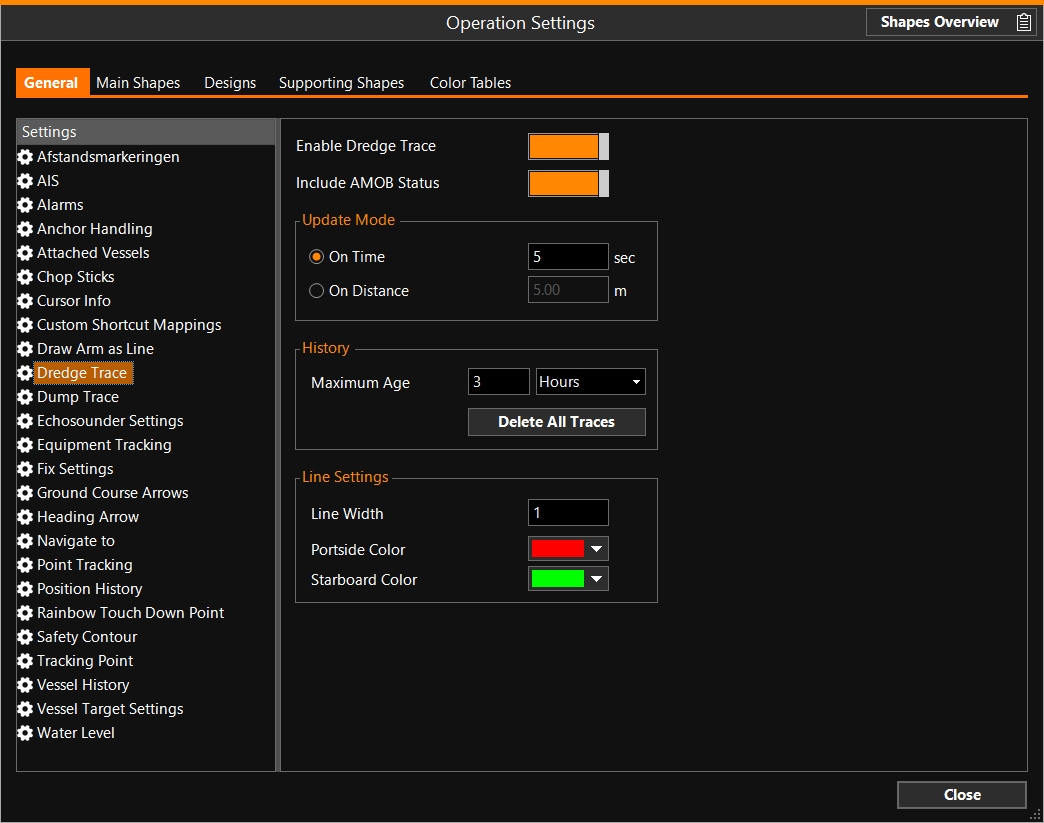
Include AMOB Status - (AMOB = Dutch abbreviation for Arm The part of Equipment between the Equipment Body and its Head. For example, the suction pipe and drag head of a Trailing Suction Hopper Dredger, or the combination of boom, stick and bucket of an excavator. Mengsel Over Boord = Poor Mixture Overboard). Normally, the AMOB is disregarded when dredging, as there is almost no sediment being transported. But if the AMOB needs to be recorded as dredging activity, it can be switched on as well.
Dockable menu button for toggling Dredge Trace
It is possible to create a shortcut button to this window.
To set this up, go through the following series of options:
MENU > Screen Layout > Add View > All > Dockable Menu > Add
This will open an empty Menu page.
Right-click in it to open the View Settings menu, then follow this series of options:
Edit Items > Additional Settings >
Show Dredge Trace >  > OK
> OK
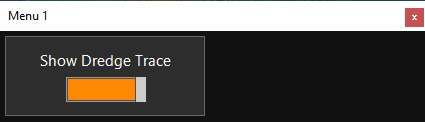
The dockable menu button can be used to switch the dredge traces for all Top Views on/off.
Delete Dredge Traces
MENU > Quick
Access > Delete Dredge Traces
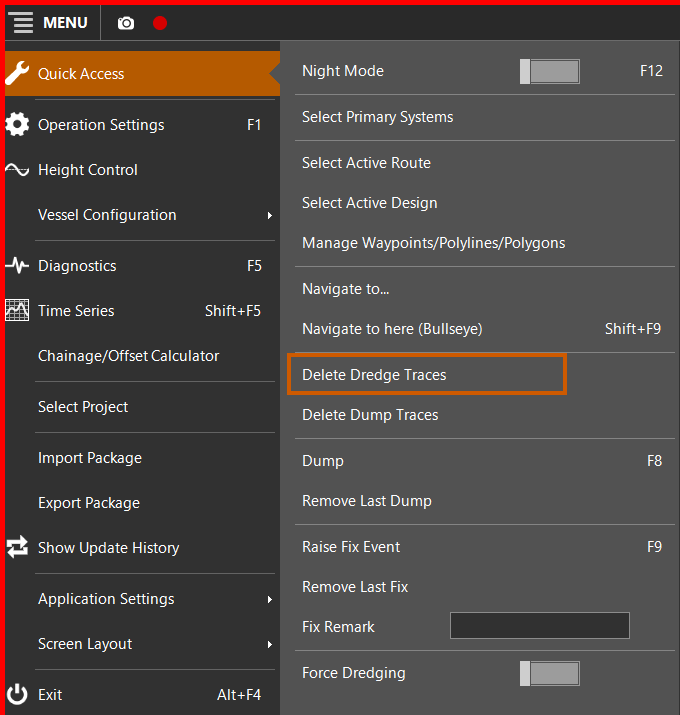
Delete Dredge Traces will delete all dredge traces in your Top View.
Force Dredging
In the Quick Access menu, you can Manually set the status to Dredging, overruling other automatic settings.